-format..jpg)
The Ultimate Guide to Comma-Separated Values (CSV) & Data Formatting

The Ultimate Guide to Comma-Separated Values (CSV): From Basics to Advanced Data Formatting
In the world of data, simplicity is often the most powerful tool. And when it comes to exchanging tabular data between different applications, programming languages, and operating systems, no format is more ubiquitous, simple, and effective than Comma-Separated Values, or CSV.
You encounter CSVs everywhere: exporting customer lists from your CRM, downloading keyword data from SEO tools, importing product catalogs into an e-commerce platform, or simply sharing a dataset with a colleague. Yet, despite their widespread use, many people struggle with the nuances of creating, manipulating, and understanding CSV files, often leading to formatting errors, failed data imports, and frustrating hours of manual cleanup.
This comprehensive guide will demystify CSVs. We'll dive deep into:
What CSVs actually are and why they're so popular.
The fundamental rules that govern their structure.
Common challenges you'll face and how to overcome them.
Real-world applications across various industries – from marketing to development.
How to efficiently create and manage them, especially with the help of a comma separator converter online like SEOMagnate's free tool.
By the end of this article, you'll not only understand CSVs inside and out but also possess the knowledge and tools to handle any CSV-related task with confidence and precision.

What Exactly Are Comma-Separated Values (CSV)?
At its core, a CSV file is a plain text file that stores tabular data (numbers and text) in a structured format. Each line in the file represents a "row" of data, and within each row, "columns" are separated by a delimiter, most commonly a comma.
Think of a spreadsheet. Each row is a record, and each column is a field (like "Name," "Email," "Age"). A CSV file stores this exact same information, but instead of a proprietary binary format (like an Excel .xlsx file), it uses simple text characters.
Example of a basic CSV structure:
Name,Email,Age
John Doe,[email protected],30
Jane Smith,[email protected],25
Why Are CSVs So Popular?
The enduring popularity of CSVs stems from their inherent simplicity and universality:
Plain Text: Being plain text means they can be opened and read by virtually any text editor, spreadsheet program, or custom software application, regardless of operating system or proprietary software licenses.
Universally Compatible: They act as a "lingua franca" for data exchange. Almost every database, spreadsheet program, and data analysis tool can import and export data in CSV format.
Human-Readable: Even when dealing with complex datasets, the basic structure is easy for humans to understand and troubleshoot.
Small File Size: Compared to complex spreadsheet formats (like .xlsx), CSVs are typically much smaller in file size, making them faster to transfer and process.
Easy to Generate: Programmatically, it's very easy to write code that generates CSV files, making them ideal for data exports and reports.
The Anatomy of a CSV File: Rules and Best Practices
While simple, CSVs do have a few critical rules that, if ignored, can lead to parsing errors. Understanding these rules is key to becoming a CSV master.
Rule 1: Delimiters Define Columns
The primary rule is that a specific character (the delimiter) separates fields (columns). While "comma" is in the name, other delimiters like semicolons (;) or tabs (\t) are sometimes used, creating "Semicolon-Separated Values" or "Tab-Separated Values" (TSV).
Rule 2: Newlines Define Rows
Each new line in a CSV file signifies a new record or row of data.
Rule 3: The Header Row (Optional but Recommended)
Typically, the first line of a CSV file is a "header row" that provides names for each column. This helps both humans and programs understand what data is contained in each field. While optional, it's a best practice for clarity and data integrity.
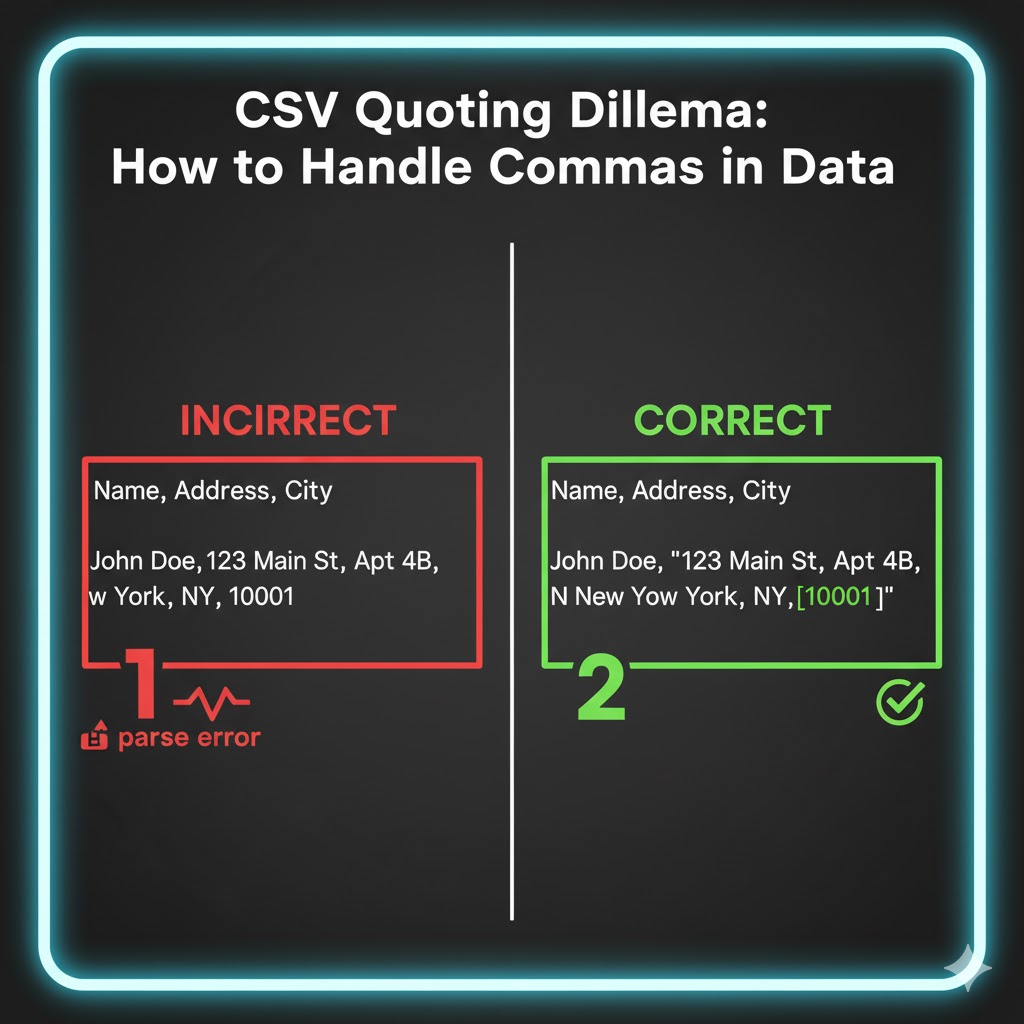
Rule 4: Handling Special Characters (The Quoting Dilemma)
This is where most CSV errors occur. What happens if your data itself contains a comma? Or a newline character?
Consider this data: "123 Main St, Apt 4B, Anytown"
If you simply wrote: Name,Address,City as John Doe,123 Main St, Apt 4B, Anytown,NY, a program would see five columns instead of three!
To solve this, CSV uses text qualifiers, most commonly double quotes ("). If a field contains the delimiter (a comma), a newline character, or a double quote itself, that entire field should be enclosed in double quotes.
Corrected Example:
Name,Address,City
John Doe,"123 Main St, Apt 4B",Anytown
Rule 5: Escaping Double Quotes Within Fields
What if a field itself contains a double quote? For example, a product description might say: Our "Elite" model is the best!
To handle this, any double quote within a quoted field must be "escaped" by doubling it.
Example:
Product,Description
Widget X,"Our ""Elite"" model is the best!"
This ensures that the parser knows the doubled quote is part of the data, not the end of the field.
Common CSV Challenges and How to Solve Them
Even with the rules, real-world data is messy. Here are frequent issues and their solutions.
Challenge 1: Inconsistent Delimiters
You receive a file that looks like a CSV but won't open correctly. Often, it's using semicolons or tabs instead of commas.
Solution: Most spreadsheet programs allow you to specify the delimiter upon import. If you're dealing with raw text, you can use a text editor's find-and-replace feature, or better yet, a versatile comma separator converter online tool that supports multiple delimiters.
Challenge 2: Hidden Whitespace and Blank Lines
Data copied from websites or databases often includes extra spaces before/after values or empty rows. These can cause "empty field" errors or break data validation.
Solution: Manual trimming is tedious. An efficient online tool should offer a "trim whitespace" and "remove blank lines" feature. The Comma Separator by SEOMagnate, for instance, has an intelligent "Auto-Clean" engine that automatically handles these common issues, saving you hours of cleanup.
Challenge 3: Incorrect Quoting
Missing quotes around fields containing commas, or improperly escaped quotes, are major headaches.
Solution: If generating CSVs programmatically, ensure your code adheres strictly to RFC 4180 (the standard for CSV). If you're manually compiling lists for programming arrays or SQL IN clauses, use a tool that can automatically add double quotes around each item, which prevents these errors.
Challenge 4: Character Encoding Issues
Special characters (like é, ñ, ü) can appear as gibberish if the file's character encoding (e.g., UTF-8, Latin-1) isn't correctly identified.
Solution: Always aim to save and open CSV files using UTF-8 encoding. It's the most widely supported standard for international characters. Most modern tools and text editors default to or strongly recommend UTF-8.
Real-World Applications of CSVs Across Industries
CSVs are not just for developers. Their versatility makes them indispensable in numerous fields.
1. SEO & Digital Marketing
Keyword Research: Export massive lists of keywords from tools like Ahrefs, Semrush, or Google Keyword Planner. Convert these one-per-line lists into comma-separated strings for importing into Google Ads, content briefs, or other SEO software.
Negative Keywords: Rapidly compile and format lists of negative keywords to refine your PPC campaigns.
URL Management: Create lists of URLs for site audits, disavow files, or link-building outreach.
Content Inventory: Export content details (title, URL, publication date) for analysis.
Email Lists: Transfer email addresses and subscriber data between different email marketing platforms or CRMs.
2. Data Analysis & Business Intelligence
Data Exchange: The primary format for moving data between various systems (databases, spreadsheets, analytics platforms).
Small Datasets: Ideal for quick analysis in Excel, Google Sheets, or R/Python for smaller datasets that don't require a full database.
Reporting: Many business tools generate reports in CSV format for further manipulation.
Import/Export: Used to bulk import customer records, product inventories, or sales data into business applications.
3. Software Development & Programming
Configuration Files: Storing simple key-value pairs or lists of settings.
Data Fixtures/Seeds: Providing initial data for testing or populating a new database.
SQL Queries: Generating lists of IDs or values for IN clauses (e.g., SELECT * FROM users WHERE id IN (101, 205, 312)). Our Comma Separator converter online excels at generating these directly from a pasted list.
Array/List Creation: Easily convert human-readable lists into perfectly formatted arrays in languages like Python, JavaScript, or PHP.
Logging: Simple, append-only logs can be stored efficiently in CSV format.
4. E-commerce & Product Management
Product Catalogs: Importing or exporting product data (SKUs, names, descriptions, prices, tags) for online stores.
Inventory Management: Updating stock levels or product variations in bulk.
Order Processing: Exchanging order details between different systems (e.g., online store to fulfillment center).
Mastering CSVs: How SEOMagnate's Comma Separator Enhances Your Workflow
While manual editing of CSVs is possible, it's rarely efficient or error-free for anything beyond a few lines. This is where a specialized online tool becomes indispensable.
Many generic "list to CSV" tools offer basic functionality, but they often fall short when dealing with real-world complexities. They might not handle blank lines, leading to extra commas (,,), or they won't automatically add quotes around fields, causing issues with embedded commas.
The Comma Separator by SEOMagnate was built to address these specific pain points, transforming tedious tasks into a simple, one-click operation.
Here’s how our tool helps you master CSV creation and manipulation:
Smart Data Cleaning:
Remove Blank Lines: Automatically identifies and removes empty rows from your input, preventing "empty field" errors.
Trim Whitespace: Cleans up leading/trailing spaces from each item, ensuring data integrity. No more " item1" becoming "item1"!
Flexible Delimiter Control:
Standard Comma: The default for CSV.
Comma + Space: For human-readable lists (e.g., item1, item2, item3).
Semicolon: For European CSV formats or when commas are part of the data.
Custom Delimiter: Need to separate by a pipe (|) or a specific character? Our tool handles it.
Automatic Quoting for Robust CSVs and Code:
Instantly wrap each item in double quotes ("item") or single quotes ('item'). This is crucial for:
Proper CSV Syntax: Ensures fields containing commas are correctly enclosed.
Programming Arrays: Generate perfectly formatted JavaScript, Python, or PHP arrays with a single click.
SQL IN Clauses: Quickly create quoted lists for database queries.
Reverse Conversion (Comma-to-Newline):
Sometimes you have a long, comma-separated string that you need to break down into individual lines for easier editing or analysis. Our tool can convert a single comma-separated line back into a vertical list, one item per line. This is incredibly useful for reviewing or reorganizing data.
Unmatched Privacy and Speed:
Client-Side Processing: Your data never leaves your browser. It's processed locally on your machine, ensuring complete privacy and security – a critical feature often missing from generic online tools.
Instant Results: Designed for speed, even large datasets are formatted almost instantly.
By leveraging the Comma Separator, you eliminate the common pitfalls of CSV creation and ensure your data is always perfectly formatted, saving you time, preventing errors, and streamlining your entire workflow.
Conclusion: Embrace the Power of Properly Formatted Data
CSVs are not just a simple text format; they are the backbone of data exchange in the digital world. Understanding their structure, rules, and common challenges empowers you to manage information more effectively across all your professional endeavors.
From SEO keyword lists to complex programming arrays and critical data imports, the ability to correctly format and manipulate comma-separated values is a fundamental skill. And with advanced comma separator converter online tools like the one offered by SEOMagnate, achieving perfectly formatted data has never been easier or more secure.
Stop wrestling with manual formatting and potential errors. Embrace the efficiency and precision that comes from using the right tool for the job.
Ready to simplify your data formatting? Try SEOMagnate's free Comma Separator now → https://seomagnate.com/comma-separator
Frequently Asked Questions (FAQ)
Q: What does CSV stand for? A: CSV stands for Comma-Separated Values. It's a plain text file format for storing tabular data, where each line typically represents a data record, and fields within the record are separated by commas.
Q: How do you open a CSV file? A: You can open a CSV file with any plain text editor (like Notepad, Sublime Text, VS Code) to view its raw content. For a more structured view, it's best opened with spreadsheet software like Microsoft Excel, Google Sheets, Apple Numbers, or LibreOffice Calc, which will automatically organize the data into rows and columns.
Q: Can a CSV file use something other than a comma as a separator? A: Yes, absolutely. While a comma is the most common delimiter (hence "CSV"), other characters like semicolons (creating Semicolon-Separated Values) or tabs (creating Tab-Separated Values, or TSV) are also frequently used. Many programs allow you to specify the delimiter when importing or exporting data.
Q: What is the difference between a CSV file and an Excel (XLSX) file? A: The main difference is format and complexity. A CSV file is a plain text file, meaning it stores data as simple characters without any formatting (like fonts, colors, formulas, macros, or multiple sheets). An Excel (XLSX) file is a proprietary binary format that can store all these complex features, including multiple worksheets, charts, and macros. CSVs are simpler, smaller, and universally compatible for data exchange, while XLSX files offer richer spreadsheet functionality.
Q: Why do some CSV values appear in quotes? A: Values in CSVs are enclosed in double quotes (e.g., "John Doe","123 Main St, Anytown") when the data itself contains the delimiter (a comma), a newline character, or a double quote. This quoting tells the program that the enclosed content should be treated as a single field, preventing parsing errors. If a double quote appears within a quoted field, it is typically escaped by doubling it (e.g., "Product ""Elite"" Model").
Q: How can I convert a list of items into a CSV format easily? A: The easiest way is to use an online comma separator converter online tool like SEOMagnate's Comma Separator. You simply paste your list (one item per line), choose your desired delimiter (like a comma), and optionally select to add quotes or clean up blank lines/whitespace, then click convert. The tool instantly generates the properly formatted CSV string for you.