Favicon Generator
Create a favicon and app icons for your website from an image, in the needed formats and sizes. No signup. Ideal for giving your site a proper favicon and icons.
Share on Social Media:
This favicon generator creates a favicon and app icons for your website from an image, directly in your browser. Provide an image and get the icons your site needs. No account, no install, so you can give your site a proper favicon on any device in seconds.
How to Generate a Favicon Step by Step
- Provide your image. Upload the image you want to use as your favicon, such as a logo or simple graphic that represents your site.
- Generate the favicon and icons. The tool creates a favicon and app icons from your image, in the formats and sizes a website needs.
- Get the icon files. Receive the favicon and icon files, ready to add to your website so browsers and devices display them.
- Add them to your site. Add the favicon and icons to your website, so they appear in browser tabs, bookmarks, and on devices.
- Check they appear. Confirm the favicon appears in the browser tab and the icons work, so your site has its proper icons.
What a Favicon Is and Why You Need One
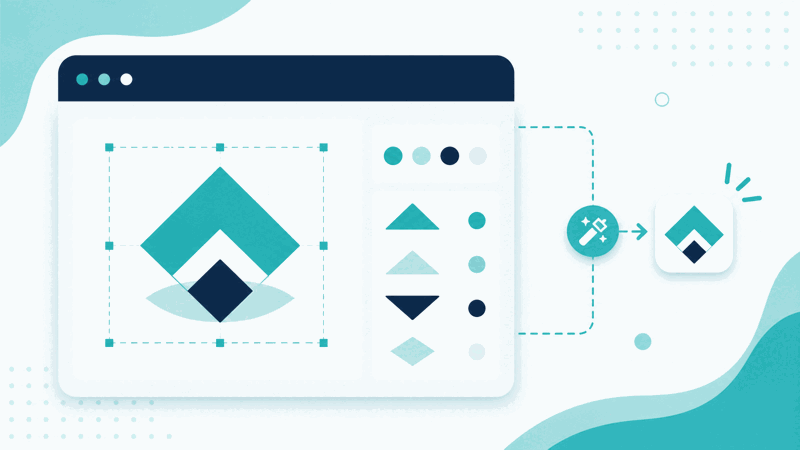
A favicon is the small icon that represents a website, appearing in browser tabs, bookmarks, and other places, helping identify and brand the site. App icons are related icons used when a site is saved to a device or shown in various contexts. A favicon generator creates these icons from an image you provide, producing the favicon and app icons a website needs.
Websites need a favicon and often app icons in specific formats and sizes. The favicon, traditionally a favicon.ico file, appears in browser tabs, while various icon sizes are used for bookmarks, devices, and app-like uses. A generator creates these from your image, producing the different formats and sizes needed, so you have the complete set of icons for your site.
A favicon differs from a regular image in being a small icon in specific formats and sizes for site identification, not a general picture. It needs to work at small sizes and in the icon formats browsers and devices expect. So a generator takes your image and produces proper favicon and app icon files, in the right formats and sizes, rather than you having to create each icon manually.
Favicon generators are used by anyone building or maintaining a website who needs a favicon and app icons: giving a site a proper icon for browser tabs and bookmarks, and app icons for devices. Because creating the various icon files in the right formats and sizes manually is fiddly, a generator that produces them all from one image is a convenient way to get the icons your site needs.
A Favicon Versus a Regular Image
| Aspect | Favicon and app icons | A regular image |
|---|---|---|
| Purpose | Identify and brand the site | A general picture |
| Sizes | Specific small icon sizes | Any size |
| Formats | Icon formats browsers expect | General image formats |
| Where shown | Tabs, bookmarks, devices | Wherever placed |
Who Uses a Favicon Generator

Pro Tips for a Good Favicon
Common Favicon Mistakes to Avoid
Related Tools You May Need Next
For your website, our HTML Minifier, CSS Minifier, and other web tools help you build and optimise your site alongside adding a favicon.
Frequently Asked Questions
How do I generate a favicon?
Upload the image you want to use as your favicon, such as a logo or simple graphic that represents your site, and the tool creates a favicon and app icons from your image, in the formats and sizes a website needs. Receive the favicon and icon files, ready to add to your website, add them to your site so they appear in browser tabs, bookmarks, and on devices, then confirm the favicon appears. This gives your site its proper favicon and app icons from one image, saving you from creating each icon file manually. So the generator produces the complete set of icons your website needs, letting you add a recognisable favicon that identifies and brands your site in browser tabs, bookmarks, and other contexts.
What is a favicon and why do I need one?
A favicon is the small icon that represents a website, appearing in browser tabs, bookmarks, and other places, helping identify and brand the site. App icons are related icons used when a site is saved to a device or shown in various contexts. You need a favicon because it identifies your site in the browser tab and bookmarks, making it recognisable and giving it a professional, branded appearance; a site without one looks less complete and is harder to identify among tabs. So a favicon is important for site identity and branding. A favicon generator creates the favicon and app icons from an image you provide, in the formats and sizes needed, so you can give your website its proper icons for browser tabs, bookmarks, and devices, improving its identity and appearance.
What is the difference between a favicon and a regular image?
A favicon differs from a regular image in being a small icon in specific formats and sizes for site identification, rather than a general picture. A favicon needs to work at small sizes, appearing clearly in a browser tab, and be in the icon formats browsers and devices expect, such as the traditional favicon.ico and various icon sizes. A regular image can be any size and general format, used wherever placed. So while you might base a favicon on an image like your logo, a favicon generator produces proper favicon and app icon files from that image, in the right small sizes and formats for use as site icons. So the difference is purpose and form: a favicon is a small, specifically formatted site icon, while a regular image is a general picture, and the generator turns your image into proper favicon files.
What image should I use for a favicon?
You should use a simple, clear image for a favicon, such as a logo or a distinct, recognisable graphic that represents your site. Because a favicon is small, appearing tiny in browser tabs, a simple image works best, remaining legible and recognisable at that size. Complex, detailed images may become unclear or unrecognisable when shrunk to favicon size, giving a poor result. So favour a simple, clean design, often a logo or brand mark, that stays clear and identifiable when small. Using your logo or brand mark also helps brand your site, so the favicon represents your identity. So choose a simple, clear, recognisable image, ideally your logo or a distinct graphic, that will remain legible and represent your site well at the small sizes a favicon is displayed.
Do I need different icon sizes?
Yes, websites typically need icons in various formats and sizes for different contexts. The favicon appears in browser tabs, traditionally as a favicon.ico file, while various icon sizes are used for bookmarks, devices, and app-like uses when a site is saved to a device. So a single icon size is often not enough; you need the set of icons in the right formats and sizes for the different places they appear. A favicon generator creates these various formats and sizes from your one image, producing the complete set, so your site has the right icon for each context. So rather than making each icon size manually, the generator gives you all the needed icons from one image, ensuring your site displays proper icons in browser tabs, bookmarks, and on devices where they are used.
How do I add the favicon to my site?
After generating the favicon and icon files, you add them to your website so browsers and devices find and display them. This typically involves placing the icon files where your site can serve them and referencing them appropriately in your site, so browsers know to use them for the tab icon, bookmarks, and device icons. The generator provides the icon files, and you add them to your site as needed. After adding them, confirm the favicon appears in the browser tab, checking it works. So the process is: generate the icons, add them to your website correctly so they are found and displayed, and verify the favicon appears. Adding them properly is important, since generating the icons alone does not make them show; they must be correctly included in your site for browsers and devices to display them.
Should I check the favicon appears?
Yes, after adding the icons to your site, you should confirm the favicon appears in the browser tab, so you know it is working and displaying as intended. Assuming the favicon works without checking risks it not appearing due to an issue, such as the icons not being added correctly. Checking catches any such problem, letting you fix it so your site shows its favicon. So after generating the icons and adding them to your website, look at the browser tab to confirm the favicon displays, and check the icons work in other contexts as relevant. This verification ensures your site actually has its proper favicon and app icons showing, rather than displaying none due to an unnoticed issue. So confirming the favicon appears is a worthwhile final step to ensure your site's icons are working correctly.
Is the favicon generator free?
Yes, it is completely free with no account and no usage limit. You can generate favicons and app icons for as many sites as you like, as often as you like, at no cost. It runs in your browser on any device, so there is nothing to download or install, and your favicon and icon files are ready once generated from your image. Use it to create the favicon and app icons your website needs from a simple, clear image like your logo, giving your site a recognisable icon in browser tabs, bookmarks, and on devices. Remember to use a simple image that stays clear when small, get all the needed sizes, add the icons to your site correctly, and check the favicon appears.