HEIC to JPG
Convert iPhone HEIC photos into widely supported, compact JPG images, for compatibility. No signup. Ideal for sharing iPhone photos where HEIC is not supported.
Share on Social Media:
This HEIC to JPG converter turns iPhone HEIC photos into the widely supported, compact JPG format, directly in your browser. Provide your HEIC and get a JPG. No account, no install, so you can convert iPhone photos for compatibility on any device in seconds.
How to Convert HEIC to JPG Step by Step
- Provide your HEIC. Upload the HEIC photo, such as one taken on an iPhone, that you want to convert to JPG.
- Convert to JPG. The tool converts your HEIC into the JPG format, producing a JPG version of the photo.
- Get the JPG image. Receive the JPG image, your photo now in the widely supported, compact JPG format.
- Check the JPG. Review the JPG to confirm the photo is preserved and looks as expected in the compact format.
- Save and use the JPG. Save your JPG image, ready to use, share, or upload wherever JPG is wanted, which is almost everywhere.
What HEIC and JPG Are
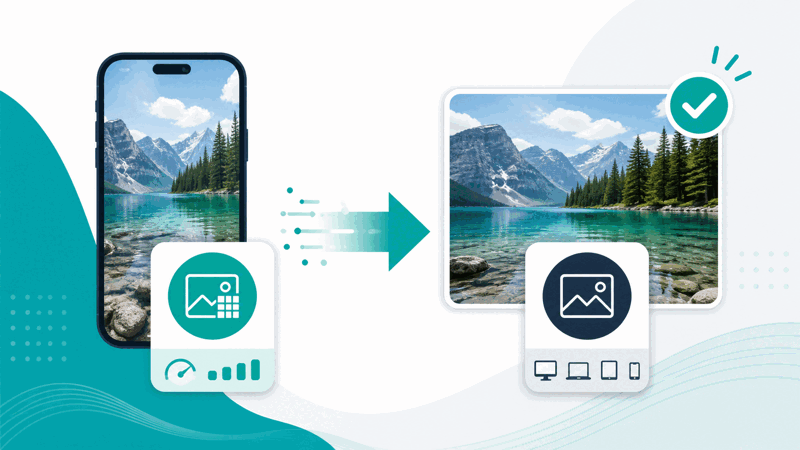
HEIC is an image format used by iPhones and some other devices for photos, offering good quality at efficient file sizes. However, HEIC is not supported everywhere: many programs, websites, and devices do not handle HEIC photos, which can make sharing or using iPhone photos difficult. JPG, by contrast, is one of the most widely supported image formats, near universal and compact, ideal for photos.
The main reason to convert HEIC to JPG is compatibility. If you have an iPhone photo in HEIC but need to use it somewhere that does not support HEIC, converting to JPG gives you a version in a near universally supported format that will work almost everywhere. JPG is also compact and well suited to photos, so the result is a small, broadly compatible photo file, ideal for sharing and uploading.
JPG is an excellent target for iPhone photos because it is near universally supported and, like HEIC, well suited to photos, giving a good balance of quality and small size. Converting a HEIC photo to JPG gives a compatible, compact image that works almost everywhere. JPG uses lossy compression and does not support transparency, but photos do not use transparency, so JPG suits them well.
HEIC to JPG conversion is used by iPhone users and anyone with HEIC photos who needs them in a widely supported, compact format: for sharing iPhone photos with people or systems that do not support HEIC, for uploading photos where JPG is wanted, or wherever broad compatibility and small size are needed. Because JPG works almost everywhere and suits photos, converting HEIC to JPG is a practical, common task for using iPhone photos.
Why Convert HEIC to JPG
| Aspect | JPG | HEIC |
|---|---|---|
| Support | Near universal | Limited, iPhone and some |
| File size | Compact | Efficient |
| Suited to photos | Yes | Yes |
| Best for | Compatibility, sharing | Efficient storage on device |
Who Converts HEIC to JPG
Pro Tips for HEIC to JPG
Common HEIC to JPG Mistakes to Avoid
Related Tools You May Need Next
For image conversion, our HEIC to PNG tool keeps transparency, the AVIF to JPG tool converts AVIF, and other image tools help you convert photo formats.
Frequently Asked Questions
How do I convert HEIC to JPG?
Provide the HEIC photo, such as one taken on an iPhone, that you want to convert, and the tool converts it into the JPG format, producing a JPG version of the photo. Receive the JPG image, your photo now in the widely supported, compact JPG format, review it to confirm the photo is preserved and looks as expected, then save and use it wherever JPG is wanted, which is almost everywhere. This turns an iPhone HEIC photo into a broadly compatible, compact JPG, which is useful when you have a HEIC but need to use it somewhere that does not support HEIC. So converting to JPG solves compatibility problems, giving you a small, near universally supported version for sharing, uploading, or using your iPhone photo.
What are HEIC and JPG?
HEIC is an image format used by iPhones and some other devices for photos, offering good quality at efficient file sizes, but it is not supported everywhere: many programs, websites, and devices do not handle HEIC. JPG, by contrast, is one of the most widely supported image formats, near universal and compact, and well suited to photos, though it uses lossy compression. So HEIC is an efficient format for iPhone photos with limited support, while JPG is a broadly compatible, compact format ideal for photos. Converting HEIC to JPG turns an efficient but less widely supported iPhone photo into a near universally supported, compact one, useful for compatibility where HEIC is not handled, giving a small, broadly compatible photo file suited to sharing and uploading.
Why convert HEIC to JPG?
The main reason is compatibility. HEIC, used by iPhones, is not supported everywhere, so if you have an iPhone photo in HEIC but need to use it somewhere that does not support HEIC, you need a version in a more widely supported format. Converting to JPG gives you that: JPG is near universally supported, so the converted photo will work almost everywhere. JPG is also compact and well suited to photos, so you get a small, broadly compatible photo file, ideal for sharing and uploading. So converting solves the common problem of HEIC's limited support, which often arises when sharing iPhone photos with others or uploading to sites that do not accept HEIC. So you convert HEIC to JPG to gain broad compatibility and a compact photo, letting you use your iPhone photos in the many contexts that do not support HEIC.
What is the difference between HEIC to JPG and HEIC to PNG?
Both convert an iPhone HEIC photo to a more widely supported format, but they differ in the target's characteristics. Converting to JPG gives a compact, near universally supported photo using lossy compression, ideal for photos where small size and wide compatibility matter, but JPG does not support transparency. Converting to PNG gives a widely supported image that preserves quality well and supports transparency, but PNG files are typically larger. For iPhone photos, which are usually photographs without transparency, JPG is often the ideal choice, being compact and suited to photos. PNG might be preferred if you need to preserve exact quality or, rarely for a photo, transparency. So for most iPhone photos, HEIC to JPG gives a compact, compatible result, while HEIC to PNG suits cases needing PNG's quality preservation or transparency, at a larger file size.
Does converting to JPG reduce quality?
JPG uses lossy compression, which keeps files compact but can slightly affect the image, so converting HEIC to JPG may have a small effect on quality due to this compression. For photos, which JPG is well suited to, this is usually an acceptable trade off for the wide compatibility and small file size, and the photo generally still looks good. However, it means the JPG is not a lossless copy. So it is worth checking the JPG after converting to confirm the quality is acceptable for your use. If you need to preserve quality more exactly, converting to PNG instead may be better, though at a larger size. So while JPG's quality is fine for photos and general sharing, be aware it uses lossy compression, so check the result, and keep your original HEIC for its efficiency and quality on your device.
Should I keep the original HEIC?
Yes, you should keep your original HEIC alongside the JPG, so you retain the efficient version for your device and contexts that support HEIC. HEIC's efficient compression gives good quality at smaller sizes, which is beneficial for storage where HEIC is supported, such as on your iPhone. The JPG is the broadly compatible, compact version for where HEIC is not supported, but converting to JPG uses lossy compression. So keeping both gives you the efficient HEIC for supported uses and the compatible JPG for wide use and sharing. If you discard the HEIC after converting, you lose the efficient format, which you might want. So retain your original HEIC, using the JPG for compatibility where HEIC is not supported, while keeping the HEIC for its efficiency and quality where it is supported.
When should I convert HEIC to JPG?
You should convert HEIC to JPG when you need your iPhone photo in a widely supported, compact format, particularly when something does not support HEIC. Since HEIC is not supported everywhere, if you want to share an iPhone photo with someone whose device or software cannot handle HEIC, or upload it to a site that does not accept HEIC, converting to JPG gives you a version that works almost everywhere. JPG's compactness and suitability for photos make it ideal for this. So the key trigger is a compatibility or sharing need where HEIC is not supported. If your context does support HEIC and benefits from its efficiency, you might not need to convert. So convert HEIC to JPG for broad compatibility and sharing when HEIC is not supported, keeping your original HEIC for efficient use on your device where it is supported.
Is the HEIC to JPG converter free?
Yes, it is completely free with no account and no usage limit. You can convert as many HEIC photos to JPG as you like, as often as you like, at no cost. It runs in your browser on any device, so there is nothing to download or install, and your JPG image is ready to save once converted. Use it to turn iPhone HEIC photos into the widely supported, compact JPG format for compatibility, whenever you need to share, upload, or use a HEIC photo somewhere that does not support it. Remember JPG uses lossy compression, so check the quality, and keep your original HEIC where it is supported, using the JPG for broad compatibility and sharing of your iPhone photos.