Image to Text Converter
Extract text from an image using OCR, so you can copy and edit it. No signup. Results depend on image clarity, so review the extracted text for accuracy.
Share on Social Media:
This image to text converter uses OCR to extract text from an image, directly in your browser, so you can copy and edit it. Upload an image containing text and get the text out. No account, no install, so you can extract text from images on any device in seconds.
How to Extract Text from an Image Step by Step
- Upload your image. Provide the image containing the text you want to extract, such as a photo or screenshot with text in it.
- Run the OCR. The tool uses OCR to recognise and extract the text from the image, reading the text in the picture.
- Get the extracted text. Receive the extracted text, the text OCR found in the image, now as text you can copy and edit.
- Review the text. Review the extracted text for accuracy, since OCR results depend on image clarity and may need correcting.
- Use the text. Use the extracted text, copying, editing, or working with it, having got the text out of the image.
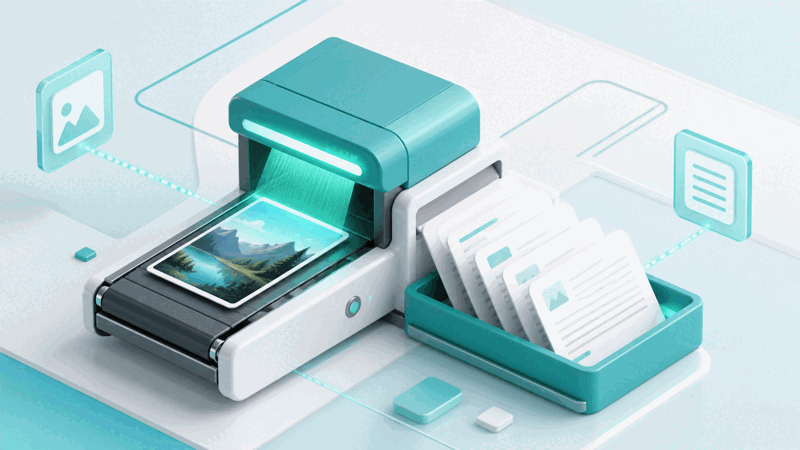
What OCR Is and How It Extracts Text
OCR, optical character recognition, is technology that recognises text within an image and extracts it as actual text. An image to text converter uses OCR to read the text in an image, such as a photo or screenshot, and give you that text, which you can then copy, edit, and work with, rather than having it locked in the image where it cannot be selected or edited.
The value is getting text out of images without retyping. If you have text in an image, such as a photo of a document or a screenshot, and you want the text itself, OCR extracts it for you, saving you from manually retyping it. This makes the text usable, letting you copy, edit, and work with it, which you cannot do while it is part of the image.
Extracting text with OCR differs from retyping in saving effort, though it depends on image clarity. Retyping is manual but you control accuracy, while OCR extracts automatically but its accuracy depends on how clear the text in the image is. Clear images give better results, while poor images may cause errors. So OCR saves effort, but you review the results for accuracy.
Image to text converters are used by anyone who needs text that is stuck in an image: extracting text from photos of documents, screenshots, or other images, to copy, edit, or use the text. Because retyping text from an image is tedious, OCR that extracts it is a genuinely useful tool, as long as you review the extracted text for accuracy, since results depend on image clarity.
Extracted Text Versus Retyping
| Aspect | OCR extraction | Manual retyping |
|---|---|---|
| Effort | Automatic | Manual, tedious |
| Speed | Fast | Slow |
| Accuracy | Depends on image clarity | You control it |
| Best for | Getting text out quickly | When you need full control |
Who Uses Image to Text
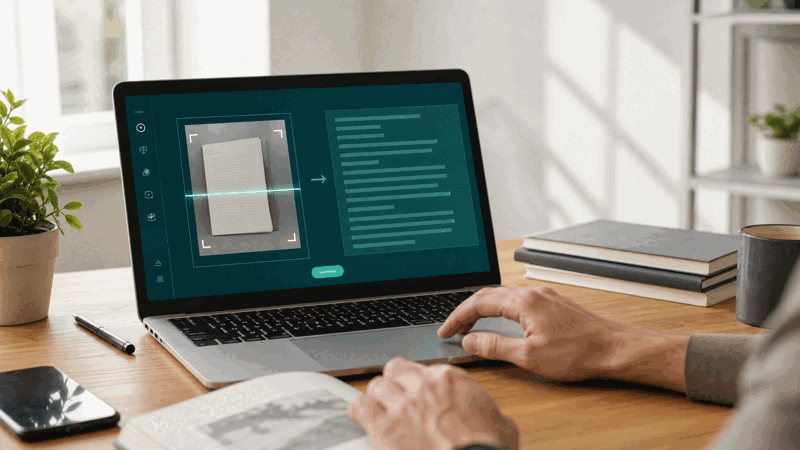
Pro Tips for Better OCR Results
Common Image to Text Mistakes to Avoid
Related Tools You May Need Next
For related tasks, our Text to Image tool does the reverse, the Text and PDF converter works with text, and other tools help you handle text.

Frequently Asked Questions
How do I extract text from an image?
Upload the image containing the text you want to extract, such as a photo or screenshot with text in it, and the tool uses OCR to recognise and extract the text from the image, reading the text in the picture. Receive the extracted text, now as text you can copy and edit, review it for accuracy since OCR results depend on image clarity and may need correcting, then use the text, copying, editing, or working with it. This gets text out of an image and into usable text, saving you from retyping it manually. So OCR extracts the text for you, giving a starting point you review and correct as needed. Remember that accuracy depends on image clarity, so clear images give better results, and you should review the extracted text and fix any errors before relying on it.
What is OCR and how does it extract text?
OCR, optical character recognition, is technology that recognises text within an image and extracts it as actual text. It works by reading the image, identifying the characters and words in it, and outputting them as text you can copy and edit, rather than the text remaining locked as part of the image. So an image to text converter uses OCR to read the text in a photo, screenshot, or other image and give you that text. This lets you get text out of images without retyping, making it usable text you can work with. However, OCR's accuracy depends on how clear the text in the image is: clear, legible images give better results, while blurry, dark, or hard to read images may cause errors. So OCR extracts text automatically by recognising the characters in an image, saving retyping, but you should review the extracted text for accuracy, since the results depend on image clarity and may need correcting.
How accurate is the text extraction?
The accuracy of text extraction depends on the clarity of the image and the text in it. OCR works best with clear, well lit, sharp images where the text is legible and standard, giving accurate results in such cases. However, with blurry, dark, low quality, stylised, or hard to read images, accuracy drops and errors are more likely. So OCR is very useful but not always perfect; its accuracy varies with the image. This is why you should review the extracted text for accuracy and correct any errors, rather than assuming flawless extraction. So for clear images with legible text, you can expect good accuracy, while for difficult images, expect to review and correct more. So treat OCR output as a helpful starting point that saves retyping, which you check against the image and refine, understanding that the accuracy depends on the image quality, with clearer images giving better, more accurate results than poor quality ones.
Why extract text from an image instead of retyping?
You extract text from an image instead of retyping to save the tedious effort of typing it out manually. If you have text stuck in an image, such as a photo of a document or a screenshot, and you want the text itself, OCR extracts it automatically and quickly, whereas retyping it by hand is slow and tedious, especially for longer text. So OCR saves time and effort by getting the text out for you. The trade off is that OCR accuracy depends on image clarity, so you review and correct the extracted text, whereas retyping gives you full control over accuracy as you type. So for getting text out of images quickly, OCR is the efficient choice, providing the text to review and refine, saving most of the effort of retyping. So people use OCR to avoid the tedious manual retyping of text from images, getting a fast automatic extraction they then check, which is much quicker than typing everything out by hand, particularly for substantial amounts of text.
What kind of images work best?
Clear, well lit, sharp images where the text is legible work best for OCR. Since OCR accuracy depends on how clearly it can read the text in the image, images with clear, standard, legible text give the most accurate extraction. So a sharp, well lit photo or screenshot where the text is easy to read is ideal. In contrast, blurry, dark, low quality, skewed, or stylised images, or images with hard to read or unusual text, are more difficult for OCR and lead to more errors. So for the best results, use images where the text is clear and legible, with good lighting and sharpness. If you must use a less clear image, expect to review and correct the extracted text more carefully, since accuracy will be lower. So to get accurate text extraction, provide the clearest images you can, with legible text, as image quality directly affects how well OCR can recognise and extract the text, with clearer images giving better, more accurate results.
Do I need to review the extracted text?
Yes, you should review the extracted text for accuracy, since OCR results depend on image clarity and may contain errors, especially from less clear images. While OCR extracts the text automatically, saving retyping, it is not always perfect, so reviewing lets you catch and correct any mistakes it made, comparing to the image if needed. This ensures you end up with accurate text rather than relying on unchecked OCR output that might have errors. So after extracting, read through the text, check it against the image, and correct any errors before using it. This review step is important because using uncorrected OCR output risks carrying its errors into your use of the text. So treat the extracted text as a starting point to verify and refine, not necessarily final, perfect text. So reviewing and correcting the extracted text is a worthwhile step to ensure accuracy, particularly for images that are not perfectly clear, giving you correct, reliable text to work with rather than potentially error containing raw OCR output.
Can I edit the extracted text?
Yes, once OCR extracts the text from the image, you get actual text that you can copy, edit, and work with, unlike the text locked in the original image, which cannot be selected or edited. So a key benefit of OCR is that it makes the text editable: after extraction, you can change it, correct it, format it, or use it however you need, as normal text. This is often the whole point of extracting text from an image, to turn it from a fixed part of a picture into editable, usable text. So you can freely edit the extracted text, including correcting any errors the OCR made, since it is now text rather than an image. So image to text conversion via OCR not only gets the text out of the image but makes it editable, letting you work with it as you would any text, which is why it is so useful for making text stuck in images usable and editable rather than retyping it or leaving it uneditable in the picture.
Is the image to text converter free?
Yes, it is completely free with no account and no usage limit. You can extract text from as many images as you like, as often as you like, at no cost. It runs in your browser on any device, so there is nothing to download or install, and your extracted text is ready once OCR reads the image. Use it to get text out of photos, screenshots, and other images, extracting it as editable text you can copy and work with, saving you from retyping. Remember that OCR accuracy depends on image clarity, so use clear, legible images for the best results, review the extracted text for accuracy, and correct any errors before using it, treating the OCR output as a helpful starting point that you verify and refine rather than assuming it is always perfectly accurate, especially for less clear images.