HTML To PDF
Convert HTML or a web page into a PDF document, saving the content as a portable, shareable file. No signup. Ideal for turning web content into a PDF to save or share.
Share on Social Media:
This HTML to PDF converter turns HTML or a web page into a PDF document, directly in your browser. Provide your HTML or page and get a PDF. No account, no install, so you can save web content as a portable PDF on any device in seconds.
How to Convert HTML to PDF Step by Step
- Provide your HTML or page. Provide the HTML or web page you want to convert, the content you want as a PDF document.
- Convert to PDF. The tool converts the HTML or page into a PDF, rendering the content into a PDF document.
- Get the PDF. Receive the PDF document, your HTML content now as a portable, shareable PDF.
- Check the PDF. Review the PDF to confirm the content rendered as expected, since complex layouts may render differently.
- Use the PDF. Use the PDF to save, share, or print the content as a portable document rather than HTML.
What Converting HTML to PDF Does
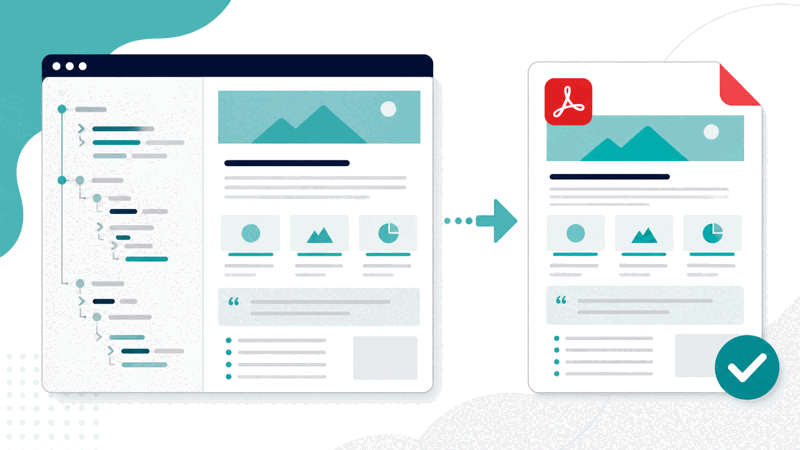
HTML is the markup that structures web pages and content, viewed in a browser. PDF is a portable document format ideal for saving, sharing, and printing, viewable consistently on almost any device. Converting HTML to PDF renders the HTML content into a PDF document, turning web content or HTML into a fixed, portable document form you can save, share, and print.
The value is saving web content as a portable document. If you want to keep, share, or print HTML content, such as a web page or HTML you have, converting it to PDF gives you a portable document that displays consistently and is easy to share and print, rather than HTML that needs a browser and may change. So it captures web content as a fixed, shareable PDF.
A PDF differs from HTML in being a fixed, portable document rather than live web markup. HTML is rendered by a browser and can be dynamic, while a PDF is a fixed document that displays consistently and suits saving, sharing, and printing. So converting HTML to PDF captures the content as a stable document, useful when you want a portable, consistent, printable version rather than live HTML.
HTML to PDF conversion is used by anyone who wants web content or HTML as a portable document: saving a web page as a PDF, sharing HTML content in a portable form, or preparing web content for printing. Because a PDF is portable, consistent, and printable, converting HTML to PDF is a practical way to capture and keep web content as a document, though complex layouts may render somewhat differently.
A PDF Versus HTML
| Aspect | HTML | |
|---|---|---|
| Type | Fixed document | Live web markup |
| Display | Consistent everywhere | Rendered by a browser |
| Best for | Saving, sharing, printing | Web viewing |
| Portable | Yes | Needs a browser |
Who Converts HTML to PDF
Pro Tips for HTML to PDF
Common HTML to PDF Mistakes to Avoid
Related Tools You May Need Next
Once you have a PDF, our Merge PDF combines PDFs, the PDF Compressor reduces size, and the Organize PDF tool arranges pages.
Frequently Asked Questions
How do I convert HTML to PDF?
Provide the HTML or web page you want to convert, the content you want as a PDF document, and the tool converts the HTML or page into a PDF, rendering the content into a PDF document. Receive the PDF, your HTML content now as a portable, shareable PDF, review it to confirm the content rendered as expected since complex layouts may render differently, then use the PDF to save, share, or print the content as a portable document rather than HTML. This captures web content or HTML as a fixed, portable PDF that displays consistently and suits saving, sharing, and printing. So converting HTML to PDF turns web content into a document form you can keep and share easily. Remember to check the rendered PDF, since complex layouts may render somewhat differently, and keep your original HTML if you may still need the web markup, using the PDF as the portable document version.
What does converting HTML to PDF do?
Converting HTML to PDF renders HTML content or a web page into a PDF document, turning web content into a fixed, portable document form. HTML is the markup that structures web pages and content, viewed in a browser, while PDF is a portable document format that displays consistently on almost any device and suits saving, sharing, and printing. So converting takes the HTML content and renders it into a PDF, capturing it as a stable document rather than live web markup. This gives you the web content as a portable, consistent document you can save, share offline, and print, rather than HTML that needs a browser and may change. However, complex layouts may render somewhat differently in the PDF, so the result should be checked. So converting HTML to PDF captures web content or HTML as a fixed, portable PDF document, useful when you want to keep, share, or print the content in a consistent, portable form rather than as live HTML, turning web content into a document you can easily store and distribute.
What is the difference between a PDF and HTML?
A PDF differs from HTML in being a fixed, portable document rather than live web markup. HTML is the markup that structures web pages, rendered by a browser, and can be dynamic or change, needing a browser to view. A PDF is a fixed document that displays consistently on almost any device, without needing a browser, and suits saving, sharing, and printing. So HTML is live web content viewed in a browser, while a PDF is a stable, portable document. This means HTML is suited to web viewing and interactivity, while a PDF is suited to a consistent, portable, printable version of content. Converting HTML to PDF captures the web content as a fixed document, useful when you want a portable, consistent version rather than live HTML. So the difference is that HTML is dynamic web markup for browser viewing, while a PDF is a fixed, portable document that displays the same everywhere and suits saving, sharing, and printing. So you convert HTML to PDF when you want the content as a stable, portable document rather than as live web content that needs a browser and may change.
Why convert HTML to PDF?
You convert HTML to PDF to save web content as a portable document that you can keep, share, and print consistently. If you want to keep a web page or HTML content, converting it to PDF gives you a portable document that displays consistently on almost any device, is easy to share, and suits printing, rather than HTML that needs a browser and may change over time. So converting is useful when saving a web page for offline reference, sharing HTML content in a portable form that others can view consistently without a browser rendering it differently, or preparing web content for printing, where PDF's consistent format suits well. It also captures a fixed version of content that will not change like a live page might. So you convert HTML to PDF whenever you want web content as a stable, portable, shareable, or printable document rather than as live HTML. So the reason is to turn web content into a convenient document form, capturing it for saving, sharing, or printing in a consistent, portable format, which is more practical than live HTML for these purposes, giving you a fixed document version of the content you can easily store and distribute.
Will complex layouts convert perfectly?
Complex layouts may not convert perfectly to PDF, since intricate web styling or dynamic elements may render somewhat differently in a fixed PDF document. Simple content generally converts well, but complex web layouts, with elaborate styling, dynamic parts, or intricate structure, may not reproduce flawlessly when rendered into a static PDF. So you should not assume a guaranteed perfect reproduction of complex layouts. This is why it is worth reviewing the resulting PDF to confirm the content rendered as expected, checking for any layout differences, especially with complex pages. For simpler content, the conversion is usually accurate, capturing the content well as a PDF. For complex layouts, expect the result may differ somewhat and check it. So while HTML to PDF conversion is a practical way to capture web content as a document, complex layouts may render with some differences, so treat the result as needing a review rather than a guaranteed perfect match, particularly for elaborate pages. So check the converted PDF to ensure the content looks as expected, understanding that simple content converts well while complex layouts may have some rendering differences in the resulting PDF document.
Should I keep the original HTML?
Yes, you should keep your original HTML if you may still need the web markup, so you retain the HTML alongside the PDF, using the PDF as the portable document version. Converting to PDF produces a fixed document, but you might still need the HTML, for instance to edit it, use it as a live web page, or work with the markup. Keeping the original HTML means you have both the editable, live web content and the portable PDF document. So if there is any chance you will need the content as HTML, retain the original, using the PDF for saving, sharing, or printing while keeping the HTML for web use or editing. If you convert to PDF and discard HTML you still need, you lose the web markup, which the PDF, being a fixed document, does not replace for web or editing purposes. So keeping the original HTML alongside the PDF gives you both forms, letting you use the PDF as the portable document and the HTML for live web content or editing. So it is sensible to keep the original HTML if you may need it, rather than losing the web markup by relying solely on the PDF document version after converting.
Can I print the PDF?
Yes, you can print the PDF, and PDF is in fact well suited to printing, which is one reason converting HTML to PDF is useful when you want to print web content. A PDF is a fixed document that displays consistently, so printing it produces a consistent, predictable result, unlike printing directly from HTML in a browser, which can vary. So if you want to print web content or HTML, converting it to a PDF first gives you a document format well suited to printing the content reliably and consistently. The PDF captures the content as a fixed document, which prints as it appears, making it a good choice for producing printed versions of web content. So converting HTML to PDF is a practical step when your goal is to print the content, since the resulting PDF is designed for consistent display and printing. So yes, you can print the PDF, and doing so is a common and well suited use, with the PDF's fixed, consistent nature making it good for printing web content that you have converted from HTML into the portable document format, giving you a reliable printed result of the content.
Is the HTML to PDF converter free?
Yes, it is completely free with no account and no usage limit. You can convert as much HTML or as many pages to PDF as you like, as often as you like, at no cost. It runs in your browser on any device, so there is nothing to download or install, and your PDF is ready once the content is rendered. Use it to turn HTML or a web page into a portable PDF document, capturing web content for saving, sharing offline, or printing consistently, rather than as live HTML that needs a browser. Remember that complex layouts may render somewhat differently in the PDF, so review the result to confirm the content rendered as expected, and keep your original HTML if you may still need the web markup for editing or web use, using the PDF as the portable, consistent document version of the content for saving, sharing, and printing.