Excel To PDF
Convert Excel spreadsheets into PDF documents, for portable sharing that looks the same everywhere. No signup. Ideal for sharing spreadsheets reliably as a PDF.
Share on Social Media:
This Excel to PDF converter turns Excel spreadsheets into PDF documents, directly in your browser. Provide your spreadsheet and get a PDF. No account, no install, so you can share spreadsheets as a portable PDF that looks the same everywhere, on any device in seconds.
How to Convert Excel to PDF Step by Step
- Provide your spreadsheet. Upload the Excel spreadsheet you want to convert into a PDF document.
- Convert to PDF. The tool converts the spreadsheet into a PDF, presenting the data and layout in the portable PDF format.
- Check the PDF. Review the resulting PDF to confirm the spreadsheet appears correctly, with the data and layout as intended.
- Save the PDF. Save the PDF, now a portable document version of your spreadsheet, ready to share or use.
- Share or view anywhere. Share the PDF, confident it will look the same and be viewable on almost any device, unlike a spreadsheet file that needs compatible software.
What Excel and PDF Are
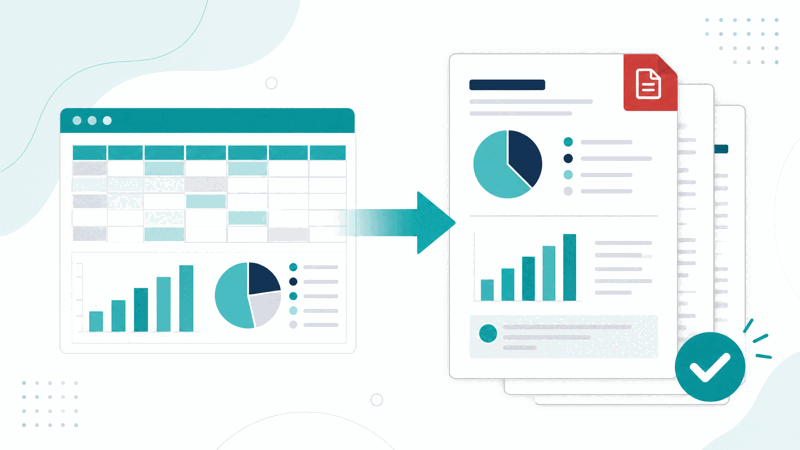
Excel is a widely used spreadsheet format, ideal for working with data in rows and columns, calculations, and analysis. However, an Excel file needs compatible spreadsheet software to open, and how it displays can vary. PDF, by contrast, is a portable document format that looks the same everywhere and opens on almost any device without special software, making it ideal for sharing a spreadsheet's contents in a fixed form.
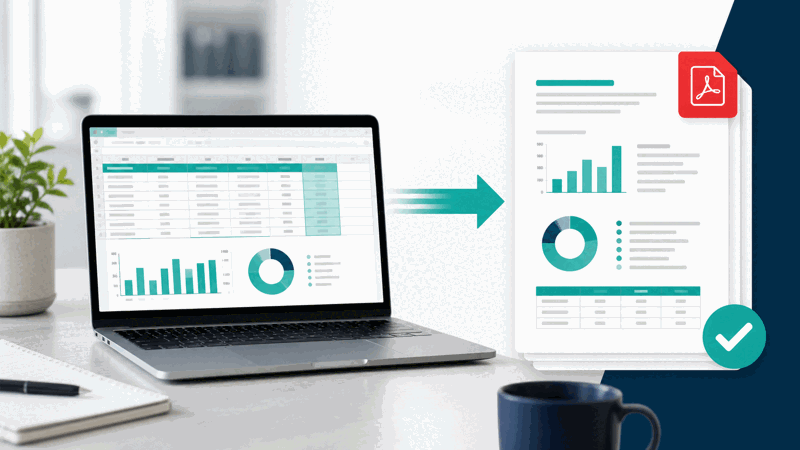
Converting an Excel spreadsheet to PDF turns your editable spreadsheet into a fixed, portable PDF, presenting the data and layout as a document. The PDF displays consistently, so it looks the same regardless of where it is opened, unlike a spreadsheet file whose display can differ or which requires spreadsheet software. This makes the PDF reliable for sharing the spreadsheet's contents for viewing.
The main benefit is reliable, portable sharing of the spreadsheet's contents. When you share a spreadsheet as a PDF, recipients can open it on almost any device without needing spreadsheet software, and it looks consistent. This is ideal when you want people to view the data as a fixed document rather than edit it, avoiding the need for them to have spreadsheet software or the risk of the file displaying differently.
Excel to PDF conversion is used whenever you want to share a spreadsheet's contents reliably for viewing: sending data to people who may not have spreadsheet software, ensuring consistent appearance, or providing a spreadsheet for viewing rather than editing. Because PDF is universally supported and displays consistently, converting a spreadsheet to PDF is a practical way to share its contents so they look right and open easily for everyone.
Why Convert a Spreadsheet to PDF
| Aspect | Excel file | |
|---|---|---|
| Software needed | Opens almost anywhere | Needs spreadsheet software |
| Appearance | Consistent, fixed | Can vary |
| Best for | Sharing data for viewing | Working with data, calculations |
| Editability | Fixed document | Editable, interactive |
Who Converts Excel to PDF
Pro Tips for Excel to PDF
Common Excel to PDF Mistakes to Avoid
Related Tools You May Need Next
For more document tasks, our Organize PDF arranges PDF pages, the Split PDF tool divides PDFs, and other PDF tools help you manage documents.
Frequently Asked Questions
How do I convert Excel to PDF?
Provide the Excel spreadsheet you want to convert, and the tool turns it into a PDF, presenting the data and layout in the portable PDF format. Review the resulting PDF to confirm the spreadsheet appears correctly, with the data and layout as intended, then save it. The PDF is a portable document version of your spreadsheet, ready to share or use, and you can share it confident it will look the same and be viewable on almost any device, unlike a spreadsheet file that needs compatible software. This turns your spreadsheet's contents into a reliable, portable PDF for consistent sharing and viewing, while you keep your original Excel file for editing and calculations. Check the layout in the PDF, since spreadsheets can be large.
What are Excel and PDF?
Excel is a widely used spreadsheet format, ideal for working with data in rows and columns, calculations, and analysis, but an Excel file needs compatible spreadsheet software to open, and how it displays can vary. PDF, by contrast, is a portable document format that looks the same everywhere and opens on almost any device without special software. So Excel is the interactive format for working with data, while PDF is a portable, consistent format ideal for sharing contents for viewing. Converting Excel to PDF turns your editable spreadsheet into a fixed, portable PDF that presents the data and layout consistently, making it reliable to share for viewing, since recipients see the contents as intended regardless of their software or device, without editing or calculations.
Why convert a spreadsheet to PDF?
The main reason is reliable, portable sharing of the spreadsheet's contents for viewing. When you share a spreadsheet as a PDF, recipients can open it on almost any device without needing spreadsheet software, and it looks consistent, so they see the data as intended. This is ideal when you want people to view the data as a fixed document rather than edit it, avoiding the need for them to have spreadsheet software or the risk of the file displaying differently or being altered. So converting to PDF makes your spreadsheet's contents open easily and appear consistently for everyone, for viewing. It is ideal for sharing results, reports, or data for viewing, ensuring a consistent appearance, or providing the contents as a fixed document rather than an editable, interactive spreadsheet.
Will the spreadsheet look right in the PDF?
Converting an Excel spreadsheet to PDF presents the data and layout in the portable PDF format, displaying consistently so it looks the same regardless of where it is opened. However, since spreadsheets can be wide or large, it is worth checking that the data and layout appear correctly and readably in the PDF, as the page size can affect how a large spreadsheet's columns or data are presented. So while the PDF fixes the appearance and displays consistently, review the resulting PDF to confirm the spreadsheet converted well, with the data readable and the layout as intended. For large or wide spreadsheets especially, checking the layout helps ensure the data is not cut off or hard to read, so the shared PDF accurately and readably presents your spreadsheet's contents.
Can I edit or calculate in the PDF?
No, a PDF presents the spreadsheet's contents as a fixed document, not an interactive spreadsheet, so you cannot edit the data or perform calculations in the PDF as you would in Excel. The PDF is a fixed view of the data and layout, suited to sharing the contents for viewing rather than working with them. So if you need to edit the data or do calculations, you should keep your original Excel file and work with that, using the PDF as the shareable, fixed view of the contents. Expecting to edit or calculate within the PDF misunderstands the format's purpose. So convert to PDF for reliable sharing and viewing of the spreadsheet's contents, but retain your original Excel file for any editing, data work, or calculations, since the PDF is a fixed document rather than an interactive spreadsheet.
Should I keep the original Excel file?
Yes, you should keep your original Excel file, since the PDF is for viewing and sharing the contents, not editing the data or doing calculations as you would in Excel. If you need to work with the data, make changes, or perform calculations, you need the editable, interactive Excel file, as the PDF is a fixed document. So keep your original Excel file, using the PDF as the shared view rather than a replacement for the working spreadsheet. If you lose or discard the Excel file, you lose the ability to work with the data, having only the fixed PDF. So retain the original Excel file for editing and calculations, and share the PDF for reliable, consistent viewing of the contents, keeping both the working spreadsheet and the portable shareable document.
When should I share a PDF instead of an Excel file?
You should share a PDF instead of an Excel file when the goal is reliable viewing of the spreadsheet's contents, especially if recipients may lack spreadsheet software, when consistent appearance matters, or when you want the data viewed as fixed rather than edited. A PDF opens on almost any device without special software and looks the same everywhere, avoiding the problems of an Excel file that a recipient might be unable to open, that might display differently, or that they might alter. So for distributing data for viewing, sharing results or reports, or presenting the contents as a fixed document, a PDF is better. Share an Excel file only when the recipient needs to work with the data, edit it, or use its calculations, and has the software; otherwise, a PDF is the more reliable choice for sharing the contents for viewing.
Is the Excel to PDF converter free?
Yes, it is completely free with no account and no usage limit. You can convert as many Excel spreadsheets to PDF as you like, as often as you like, at no cost. It runs in your browser on any device, so there is nothing to download or install, and your PDF is ready to save and share once the spreadsheet is converted. Use it to turn spreadsheets into portable, consistent PDFs that open on almost any device and look the same everywhere, ideal for sharing a spreadsheet's contents reliably for viewing, while keeping your original Excel file for editing and calculations. Remember to check the layout in the PDF, since spreadsheets can be large or wide, before sharing it.