Image Compressor
Reduce an image's file size to make it smaller and easier to share or upload. No signup. Compression may affect quality, so review the result and keep your original image.
Share on Social Media:
This image compressor reduces an image's file size, directly in your browser, making it smaller and easier to share or upload. Provide your image and get a smaller one. No account, no install, so you can compress images on any device in seconds.
How to Compress an Image Step by Step
- Provide your image. Upload the image you want to compress, the picture whose file size you want to reduce.
- Compress the image. The tool compresses the image, reducing its file size to make it smaller.
- Get the smaller image. Receive the compressed image, now smaller than the original, easier to share or upload.
- Check the result. Review the compressed image to confirm it is acceptable, since compression may affect quality.
- Use the smaller image. Use the smaller image where its reduced size helps, such as for sharing, uploading, or a web page.

What Compressing an Image Does
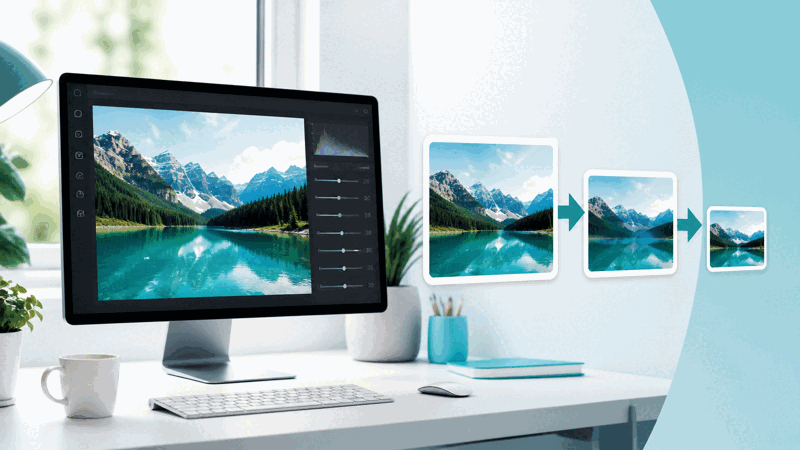
Compressing an image reduces its file size, making it smaller. Images can be large, especially high resolution ones, which makes them slower to load, harder to share, and heavier to store. An image compressor reduces the file size, so the image is more manageable: quicker to load on web pages, easier to share or upload, and lighter to store, while remaining a usable image.
The value is a smaller, more manageable image file. A smaller image loads faster on web pages, which is good for performance, sends and uploads more easily, fitting size limits, and takes less storage. So compressing an image is useful whenever a large file is inconvenient, such as for web pages where load speed matters, sharing or uploading where size limits apply, or reducing storage.
The compressed image differs from the original mainly in size, though compression may affect quality. Reducing the size can involve some loss of image quality, depending on the compression, so the smaller image may have somewhat reduced quality. For many uses, such as web pages and sharing, this trade off is fine and often barely noticeable, but you should review the result and keep your original if you need full quality.
Image compression is used by anyone with large images they want smaller: for faster loading web pages, easier sharing or uploading, or saving storage. Because large images are often inconvenient and a smaller file is easier to handle, compressing is a common, practical task, as long as you accept that compression may affect quality and keep your original for when you need full quality.
Smaller Versus Original File
| Aspect | Compressed image | Original image |
|---|---|---|
| File size | Smaller | Larger |
| Loading/sharing | Faster, easier | Slower if large |
| Quality | May be slightly reduced | Full |
| Keep for | Web, sharing, storage | Full quality needs |
Who Compresses Images
Pro Tips for Compressing Images
Common Image Compression Mistakes to Avoid
Related Tools You May Need Next
Our Image Resizer changes dimensions, the JPG to PNG and PNG to JPG tools change formats, and other image tools help.

Frequently Asked Questions
How do I compress an image?
Provide the image you want to compress, the picture whose file size you want to reduce, and the tool compresses the image, reducing its file size to make it smaller. Receive the compressed image, now smaller than the original and easier to share or upload, review it to confirm it is acceptable since compression may affect quality, then use the smaller image where its reduced size helps, such as for sharing, uploading, a web page, or storage. This gives you a more manageable, smaller image file that loads faster on web pages, sends and uploads more easily, and takes less storage. Remember that compression may slightly reduce quality, so check the compressed result is acceptable for your use, and keep your original, uncompressed image for when you need full quality, using the compressed version where its smaller size is helpful. So compressing makes an image smaller and more convenient, with a review recommended and the original kept for full quality needs.
What does compressing an image do?
Compressing an image reduces its file size, making it smaller. Images can be large, especially high resolution ones, which makes them slower to load on web pages, harder to share or upload, and heavier to store, and compressing reduces the size so the image is more manageable. It does this by reducing the data in the image file, which can involve some loss of image quality depending on the compression. The result is a smaller image that loads faster on web pages, is easier to send or upload where size limits apply, and takes less storage, while remaining a usable image. However, reducing the size may slightly affect the image's quality, as a trade off for the smaller file, though for many uses like web pages and sharing this is often barely noticeable. So compressing an image makes it smaller and more convenient for web use, sharing, and storage, possibly with somewhat reduced quality. For many purposes this trade off is worthwhile, but you should review the result and keep your original image for when you need full quality. So compressing reduces an image's file size for convenience, balancing the smaller size against a possible slight quality reduction that is often acceptable for common uses.
Does compressing reduce image quality?
Compressing an image may reduce its quality somewhat, since reducing the file size can involve some loss of image quality, depending on the compression applied. So the compressed image may have slightly reduced quality compared to the original, as a trade off for the smaller size. However, for many uses, such as images on web pages, sharing, or general viewing, this quality reduction is often acceptable and may be barely noticeable, while the smaller file size brings benefits like faster loading and easier sharing. The degree of quality reduction depends on how much the image is compressed: moderate compression often keeps the image looking good while reducing size, while very heavy compression can reduce quality more noticeably. So whether the quality reduction matters depends on your use and how much you compress: for web and sharing, a well compressed image usually looks fine, while for uses needing full quality, you would keep and use the original. So compression does trade some quality for smaller size, which is why you should review the compressed result to confirm it looks acceptable, avoid over compressing beyond what looks good, and keep your original image for when full quality is needed, using the compressed version where its reduced size is helpful and the slight quality trade off is acceptable for your purpose.
Why compress an image?
You compress an image to make it smaller and more manageable, which is useful whenever a large image file is inconvenient. A smaller image loads faster on web pages, which improves page performance and the experience for visitors, since large images can slow a page down. A smaller image is also easier to share and upload, sending more quickly and fitting within size limits where they apply, and it takes less storage space. So compressing is useful when preparing images for web pages, where load speed matters; sharing or uploading images, where a smaller file is more convenient and fits limits; or reducing storage use. In these cases, the smaller compressed file is more practical than the large original. So you compress an image to overcome the inconvenience of a large file, gaining a smaller, faster loading, easier to handle version for web use, sharing, uploading, or storage. The trade off is that compression may slightly reduce quality, so it is best when some quality reduction is acceptable, which it often is for web and sharing, and you keep the original for full quality needs. So compressing is worthwhile whenever the reduced size genuinely helps, making large images more manageable and improving loading, sharing, and storage while keeping quality acceptable for the use.
Should I keep the original image?
Yes, you should keep your original, uncompressed image, so you retain the full quality version, since compression may have reduced quality. The compressed image is smaller and more convenient for web pages, sharing, uploading, or storage, but it may have somewhat lower quality, so keeping the original ensures you still have the full quality version for when you need it. So use the compressed version where its smaller size is helpful and some quality reduction is acceptable, and keep the original for uses requiring full quality, such as printing, editing, or any purpose where the best quality matters. If you compress and discard the original, you lose the full quality version, which you cannot recover from the compressed one, and may need later. So retaining your original image alongside the compressed one gives you both: the smaller file for convenience and performance, and the original for full quality. So it is important to keep the original, using the compressed image as the convenient smaller version while preserving the full quality original for any need requiring it, rather than losing the original by discarding it after compressing, so you always have the best quality version available when you need it, with the compressed version serving the uses where a smaller size is beneficial.
How much smaller will the image be?
How much smaller the compressed image will be depends on the image and how much it is compressed. Images with more data, such as high resolution or detailed ones, often have more scope for size reduction, and the level of compression applied affects how much smaller the file becomes and how much quality is traded. Generally, compression aims to reduce the file size meaningfully while keeping the image looking acceptable, but the exact reduction varies by image and compression level. Moderate compression can often reduce size notably while keeping the image looking good, while heavier compression reduces size more but may affect quality more. So you can expect the compressed image to be smaller, often significantly so for large or high resolution images, but the precise amount depends on the image and how much it is compressed. After compressing, you can see the resulting size and review whether the file is small enough for your need, such as fitting a size limit or loading quickly, and whether the quality remains acceptable. So the size reduction is not a fixed amount but varies, with larger images typically compressing more, and you can check the result to confirm it meets your size and quality needs, balancing the smaller size against the quality for your particular use of the image.
When should I not compress an image?
You should not compress an image when you need it at full quality, since compression may reduce quality, which is not ideal when the best quality is important, such as for printing, professional use, editing, or any purpose where full image quality matters. For such uses, use the original, uncompressed image rather than a compressed one. You also need not compress an image when its size is not a problem for your use: if the image is already a manageable size and you are not constrained by web load times, sharing, upload limits, or storage, compressing mainly risks reducing quality without a real benefit. Additionally, you should avoid over compressing, which reduces quality too much, even when compressing is appropriate. So compress an image when the smaller size genuinely helps and some quality reduction is acceptable, such as for web pages, sharing within limits, or saving storage, and avoid compressing when you need full quality or when the size is not an issue. So the cases to avoid compression are when full quality is required, where you should use the original, and when the size is already fine, where compression offers little benefit while risking quality. So compress purposefully where the smaller size helps and quality reduction is acceptable, keeping the original for full quality needs and not compressing unnecessarily or excessively.
Is the image compressor free?
Yes, it is completely free with no account and no usage limit. You can compress as many images as you like, as often as you like, at no cost. It runs in your browser on any device, so there is nothing to download or install, and your smaller image is ready once compressed. Use it to reduce image file size, making images smaller and easier to share, upload where there are size limits, load faster on web pages, or store using less space. Remember that compression may slightly affect quality, so review the compressed result to confirm it is acceptable for your use, and keep your original, uncompressed image for when you need full quality, such as printing or editing. Compress where the smaller size genuinely helps and some quality reduction is acceptable, such as for web pages and sharing, avoid over compressing beyond what looks good, and use the compressed version for convenience while keeping the original for full quality needs, rather than compressing unnecessarily when the original size is not a problem.